Guide
How to use SSH on a Mac
macOS includes everything you need to use SSH out of the box. Here's how to connect from the terminal, set up keys and save connections — and when a native graphical client makes daily work easier.
Published July 16, 2026 · By Tugay Pala, Useroam Teknoloji
1. Connect from Terminal
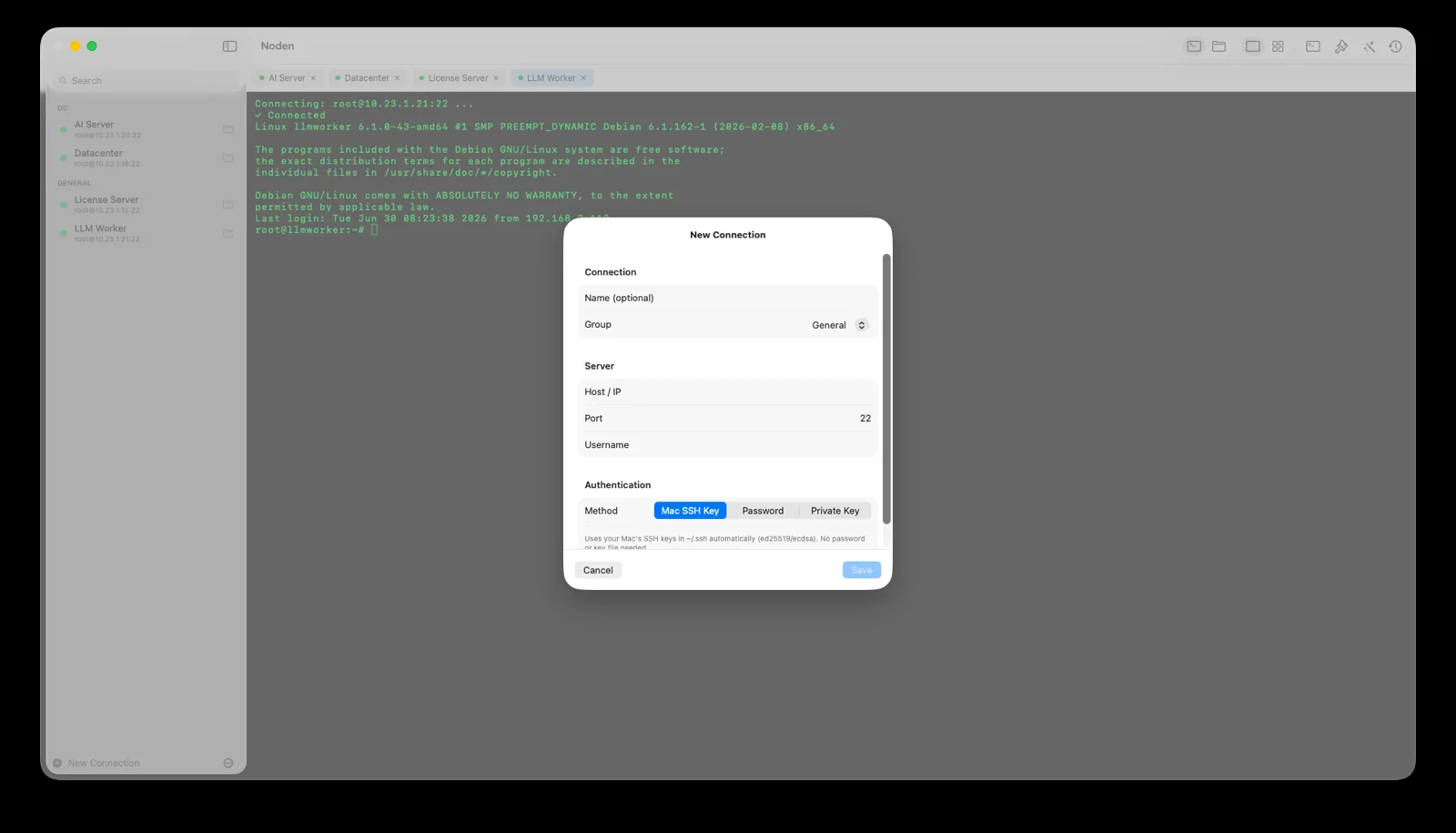
Open Terminal (Applications → Utilities) and run:
ssh username@server-addressFor example, ssh [email protected]. Enter your password, or authenticate with a key (below). To use a non-default port, add -p 2222.
2. Generate an SSH key (recommended)
Keys are safer and more convenient than passwords:
ssh-keygen -t ed25519 -C "[email protected]"
ssh-copy-id username@server-address
Your keys live in ~/.ssh. The public key (.pub) goes on the server; the private key stays on your Mac.
3. Save servers in ~/.ssh/config
Instead of typing full addresses, define hosts once:
Host web01
  HostName 203.0.113.10
  User admin
  IdentityFile ~/.ssh/id_ed25519
Now just run ssh web01.
4. Transfer files with SFTP
From the terminal you can use sftp username@server-address or scp file username@server:/path. For a graphical two-panel experience, a native app is far more comfortable.
5. Stop retyping your key passphrase
A passphrase-protected key asks for that passphrase every session. macOS can remember it: run ssh-add --apple-use-keychain ~/.ssh/id_ed25519 once, or set UseKeychain yes in ~/.ssh/config, and the passphrase is stored in your login Keychain instead. Note what this does and does not cover — it stores the passphrase that unlocks a private key, not the password of the server. A server that authenticates with a password, a sudo password, an API token or a recovery code has no place in the Keychain that the SSH client will use.
6. When SSH refuses your own key
OpenSSH ignores a private key that other users on the Mac could read, and the error points at the key rather than the permissions. If a key that should work is rejected, fix the modes:
chmod 700 ~/.ssh
chmod 600 ~/.ssh/id_ed25519
chmod 644 ~/.ssh/id_ed25519.pub
The same applies to ~/.ssh/config and to authorized_keys on the server side: a group-writable home directory is enough for the server to refuse the key without saying so.
7. "Host key verification failed"
This means the server presented a different key than the one your Mac remembers. If you rebuilt or migrated that server this is expected: remove the stale entry with ssh-keygen -R server-address in a terminal and connect again. If you did not change the server, stop and verify with whoever runs it before accepting — that warning is the one part of SSH that exists to catch an interception, and clicking past it defeats the purpose.
8. Reaching a server through a bastion
When a host is only reachable from inside the network, you do not need two terminals. ProxyJump chains the hop for you:
ssh -J bastion.example.com [email protected]Or make it permanent in ~/.ssh/config:
Host db01
  HostName 10.0.0.20
  User admin
  ProxyJump bastion.example.com
Then ssh db01 works from anywhere. Noden reads these entries on import, so a jump host you configured in the terminal keeps working in the app.
9. Make it easier with a native app
When you manage more than a couple of servers, a graphical client saves time. Noden is a native macOS SSH & SFTP client that imports your ~/.ssh/config and existing keys, shows a grid of live terminals, includes a dual-pane SFTP browser, and offers an optional AI assistant that suggests commands and asks before running them. Secrets are stored in the macOS Keychain.
brew install --cask useroamteknoloji/tap/nodenFrequently asked questions
Does macOS have an SSH client built in?
Yes. The ssh command is included in Terminal on every Mac. For a graphical experience with saved connections and file transfers, use an app like Noden.
Where are SSH keys stored on a Mac?
In the ~/.ssh folder in your home directory. Noden reads Ed25519 and ECDSA keys from there.
How do I save SSH connections on a Mac?
Add them to ~/.ssh/config, or use Noden to save and organize connections with a UI.
See also: How to use SFTP on Mac · Best SSH client for Mac · Mac SSH client guide · PuTTY for Mac